
SolverCloud
Open-source solvers in the cloud
Getting Started
From a new account to a solver running in your own cloud sandbox — create a VM, connect to its desktop, run your case, and keep the bill under control.
Table of Contents
1. Before You Begin
There is nothing to install. Everything happens in your browser and in a remote desktop window — you need an account, some credits, and a case to work on.
What you need
A valid email address to create your account.
Credits on your account. Sandboxes bill by the hour, so you need a balance before you can create one.
A remote desktop client. On Windows it's already installed — see How to Connect for macOS and Linux.
Familiarity with a Linux terminal. You drive the solver yourself, the same way you would on a workstation.
2. Create Your Sandbox
From your dashboard, click Create VM. There are four decisions, and only the first two matter much.
Name it
1–54 characters: letters, numbers and internal hyphens. The name has to be unique within the region, and it's how you'll recognise the machine in your VM list later.
Pick a region
Germany West Central or East US. Choose whichever is closer to you — latency has a bigger effect on how a remote desktop feels than anything else you can control.
Pick a size
From 2 vCPU / 8 GB up to 64 vCPU / 256 GB, with the hourly rate shown on each card. Start small — you're setting a case up, not running it at scale, and you can always create a larger sandbox later.
Set an admin password (optional)
Leave it blank and a strong one is generated for you, which you can read back from the VM details at any time. That's the better choice: this password is the only thing protecting an internet-facing Remote Desktop port.
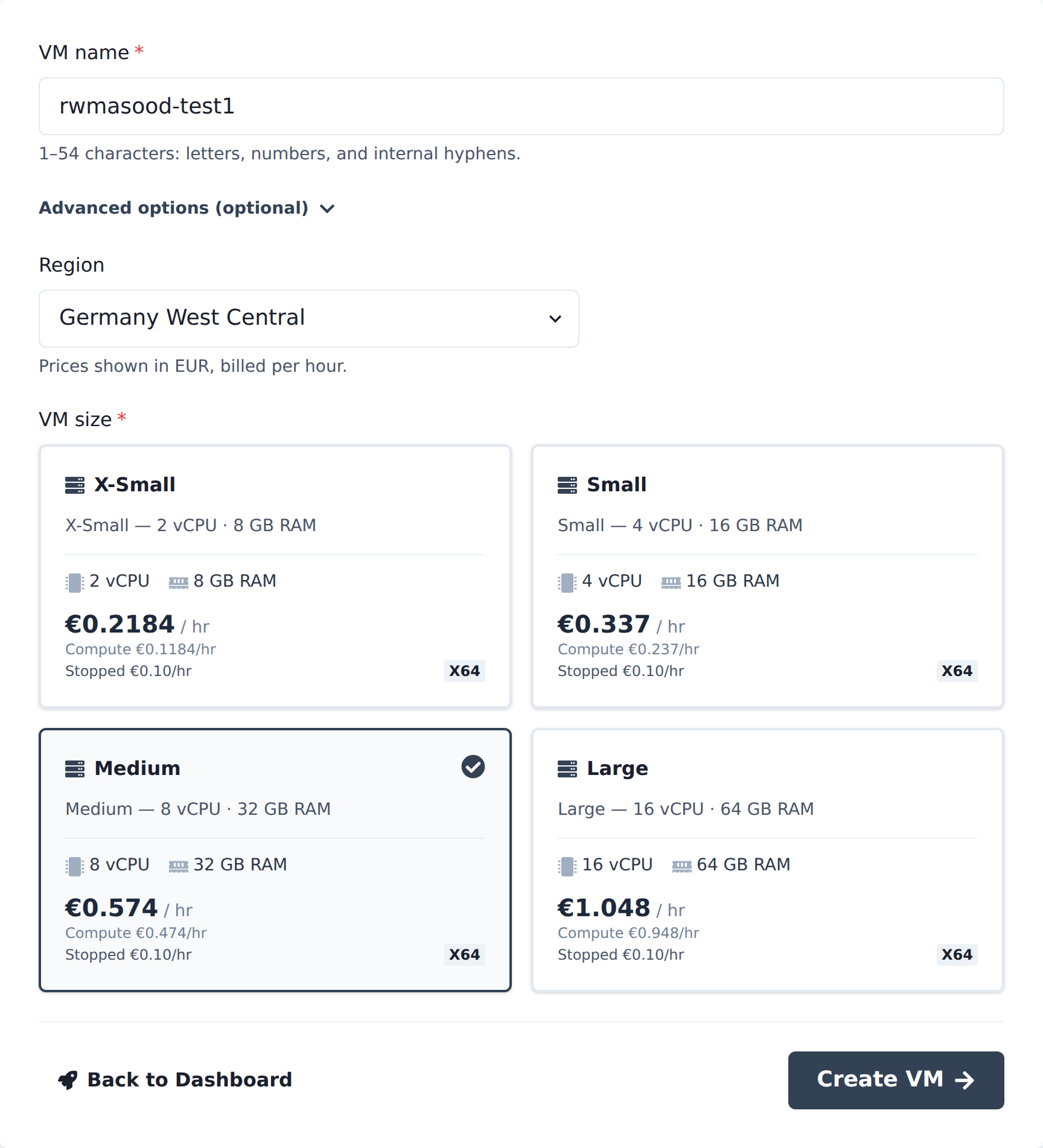
Each size card shows the running rate, the compute-only rate, and what it costs while stopped.
3. Connect to It
Every sandbox runs Ubuntu 24.04 LTS Desktop with the GNOME desktop, and xrdp is preinstalled and already listening on port 3389. On Windows there is nothing to install at either end.
Getting your credentials
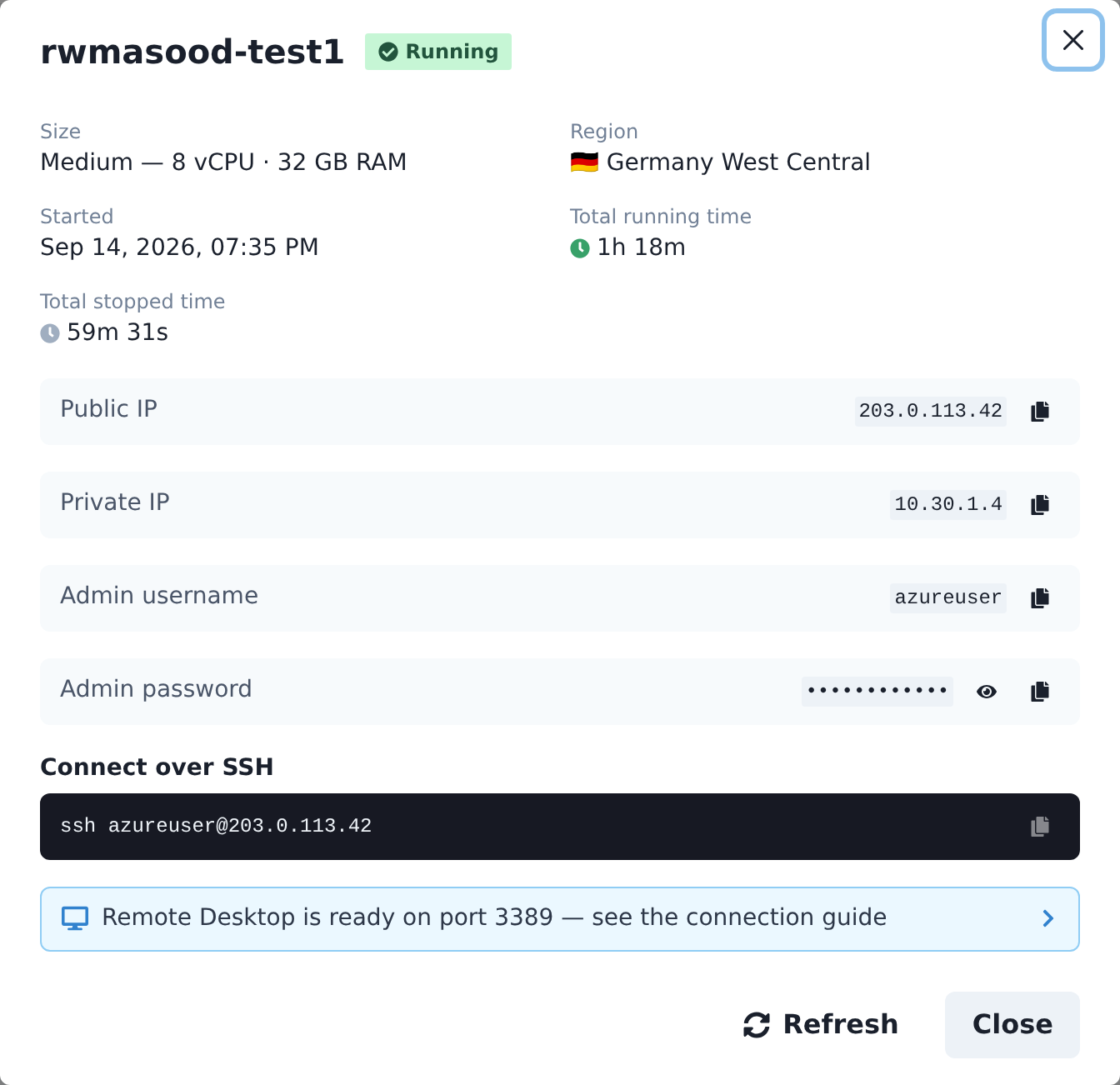
Click the info icon on any VM row. Every value has a copy button.
Open My VMs, find your machine, and click the info icon to open its details. The public IP, admin username and admin password are all there, each with a copy button — the password stays hidden until you click the eye icon.
- Press Win + R, type mstsc and press Enter.
- Paste the public IP into Computer and click Connect.
- Accept the certificate warning — xrdp uses a self-signed certificate, which is expected.
- xrdp shows its own login screen. Leave Session set to Xorg, then enter the admin username and password — the Linux account from the VM details, not a Windows login.
- It sits on "Just connecting" for a moment, then your GNOME desktop loads.
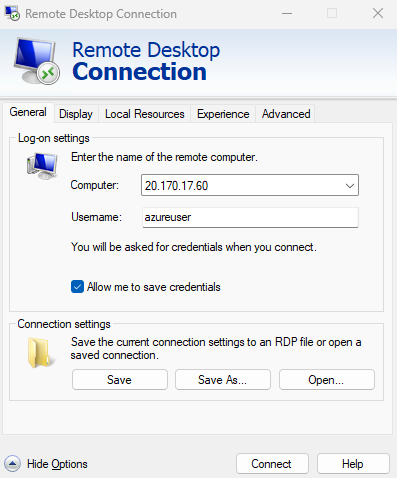
1. Put the public IP in Computer and connect.
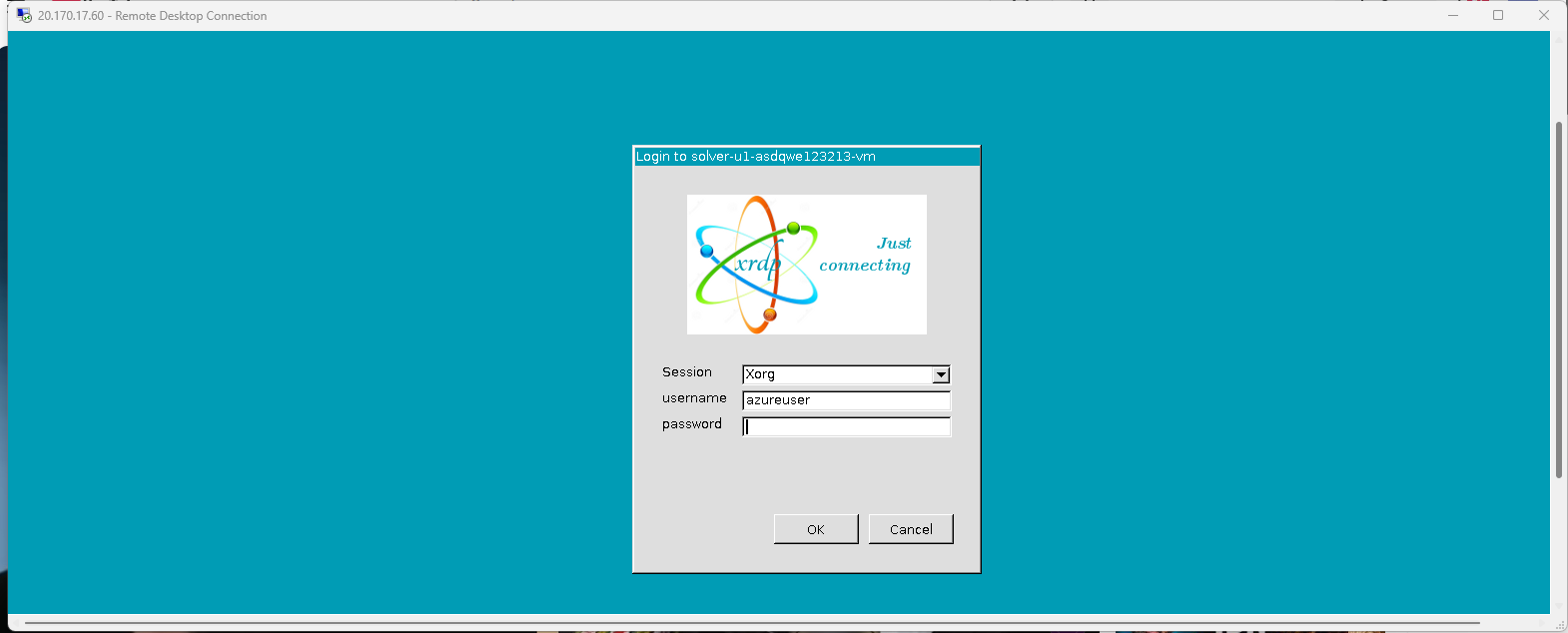
2. xrdp's own login screen — leave Session on Xorg, then sign in with the admin account.
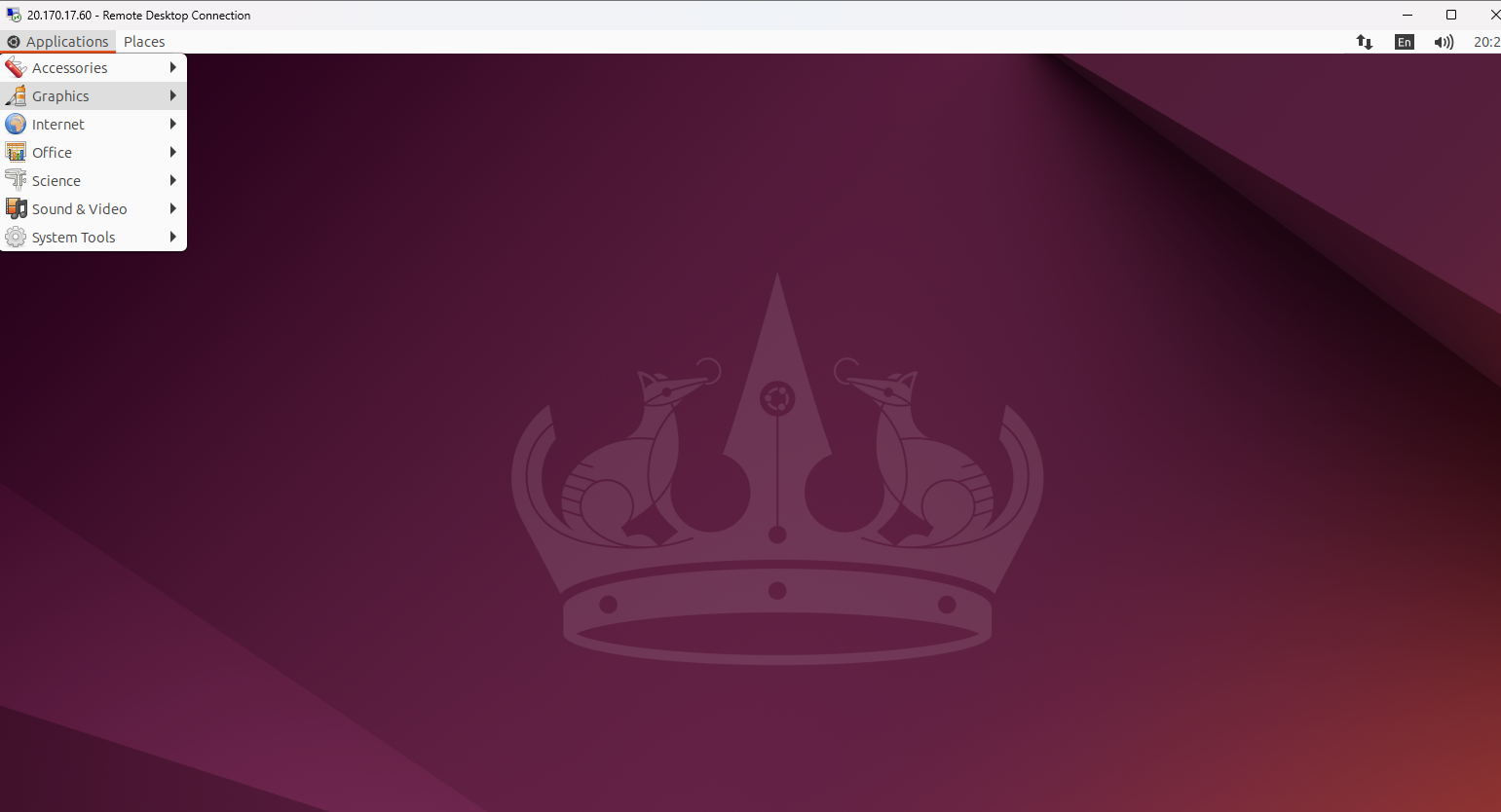
3. Your sandbox desktop, with the applications menu open.
4. Run Your First Case
You have a full desktop and a terminal, with root access via sudo. Run the solver the way you always have — nothing about the workflow is platform-specific.
First, check what's installed
Open a terminal on the sandbox and run this once after your first login. It prints the location and version of everything preinstalled, so you know the toolchain is healthy before you put a real case through it.
echo "================================"
echo "PALACE"
echo "================================"

which palace
palace --help 2>&1 | head -10

echo
echo "================================"
echo "MPI"
echo "================================"

which mpirun
mpirun --version | head -10

echo
echo "================================"
echo "PYFR"
echo "================================"

which pyfr
pyfr --version

/opt/pyfr/bin/python -c '
from mpi4py import MPI
print(MPI.Get_library_version())
'

echo
echo "================================"
echo "MFC"
echo "================================"

cd /opt/MFC
git describe --tags --always
./mfc.sh --help | head -20

echo
echo "================================"
echo "BLENDER"
echo "================================"

blender --version | head -10

blender \
    -b \
    --factory-startup \
    --python-expr \
    'import bpy; print("Blender Python OK:", bpy.app.version_string)'

echo
echo "================================"
echo "ALL BASIC CHECKS COMPLETE"
echo "================================"
Each block should print a path and a version. An empty which result means that tool isn't on your PATH — PyFR lives under /opt/pyfr and MFC under /opt/MFC, so you can always call them by full path.
What's in your sandbox
PyFR
/opt/pyfr
High-order scale-resolving CFD — LES, DNS and ILES on unstructured meshes.
MFC
/opt/MFC
Multiphase compressible flow — shocks, cavitation and bubble dynamics.
Palace
on PATH
Full-wave finite-element electromagnetics for antennas, resonators and devices.
MPI
on PATH
Run any of the solvers in parallel across the VM’s cores with mpirun.
ParaView
on PATH
Post-processing of solver output — VTK/VTU fields, slices, contours and plots.
Blender
on PATH
Rendering and visualisation, scriptable headless via its Python API.
Because you have root, you can install anything else with apt or pip for the life of that VM.
Getting files in and out
For anything larger than a snippet, use scp from your own machine rather than the remote desktop clipboard. Substitute the username and IP from the VM details.
# copy a case onto the sandbox
scp -r ./my-case <admin-username>@<public-ip>:~/

# pull results back when the run finishes
scp -r <admin-username>@<public-ip>:~/my-case/results ./
The sandbox is scratch space. Keep the authoritative copy of your work somewhere you control — deleting a VM destroys its disk permanently.
5. Manage Your Sandbox
A VM bills for as long as it exists. Understanding the three states is the difference between a predictable bill and a surprising one.
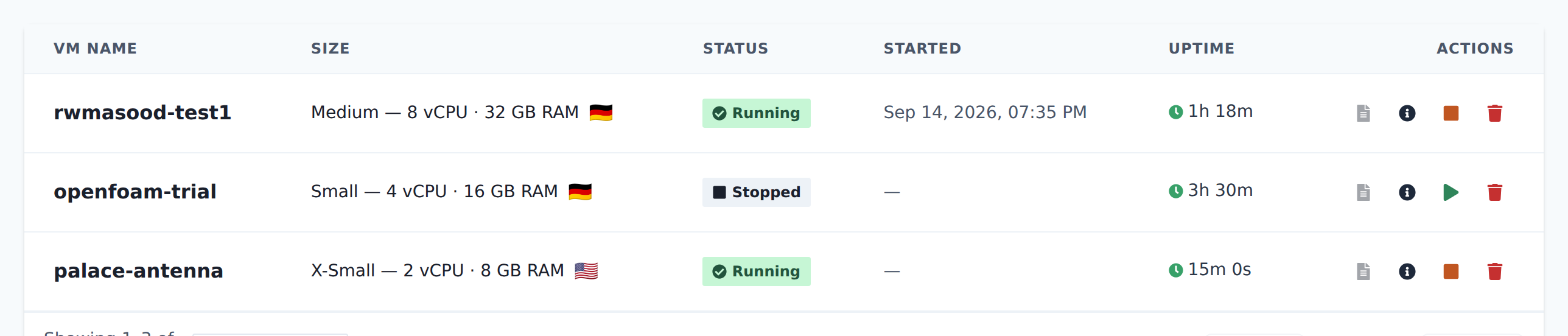
My VMs — status, uptime, and the start / stop / delete controls for each sandbox.
Running
Charged its compute rate plus a small storage surcharge. This is the only state you can connect to.
Stopped — still billing
Compute is released, but the disk is retained and carries an hourly surcharge. Your files, installed packages and configuration all survive, so this is the right state between working sessions — just not the right state to leave a VM in for a month.
Deleted — billing ends
The disk is destroyed permanently. Copy anything you want to keep off the machine first.
Your dashboard shows how many VMs you have in each state, your current hourly burn rate across the whole fleet, and how long your credits last at that rate. Start, stop and delete are all on the My VMs page.
6. Best Practices
Start small, scale when it runs
Debug on a coarse mesh and a short run on a small VM. A setup error costs the same to find at 2 vCPU as at 64.
Keep the source of truth off the sandbox
Version-control your case files and copy them in. Treat the VM's disk as disposable, because eventually it is.
Keep the generated admin password
Port 3389 is reachable from the internet and is scanned constantly. Don't replace a generated password with a memorable one.
Log out, don't just close the window
Closing an RDP window leaves the session open, which can land you on a black screen next time. Log out from the desktop itself instead.
Delete sandboxes you've finished with
A stopped VM you forget about quietly consumes credits for weeks. Check your dashboard's burn rate now and then.
7. Scale to GPU
Sandboxes are CPU machines, sized for setting a case up rather than running it at full scale. Once your case runs cleanly, take it to the GPU platform built for your solver. They run the same solver builds, so a case that works here should need little or no change.
Ready to Get Started?
That's the whole workflow. Spin up a sandbox, connect to it, and you'll have a solver running in a few minutes — no installs, no hardware, and nothing to reserve.
SolverCloud
© 2026 SolverCloud, a NumericalAI product by Empirisch Tech GmbH (empirischtech.at). All rights reserved. |Privacy Policy |Terms of Service |FAQ |Licenses